
Debugging Your First Regex: Simple Steps for Beginners When Patterns Don't Match
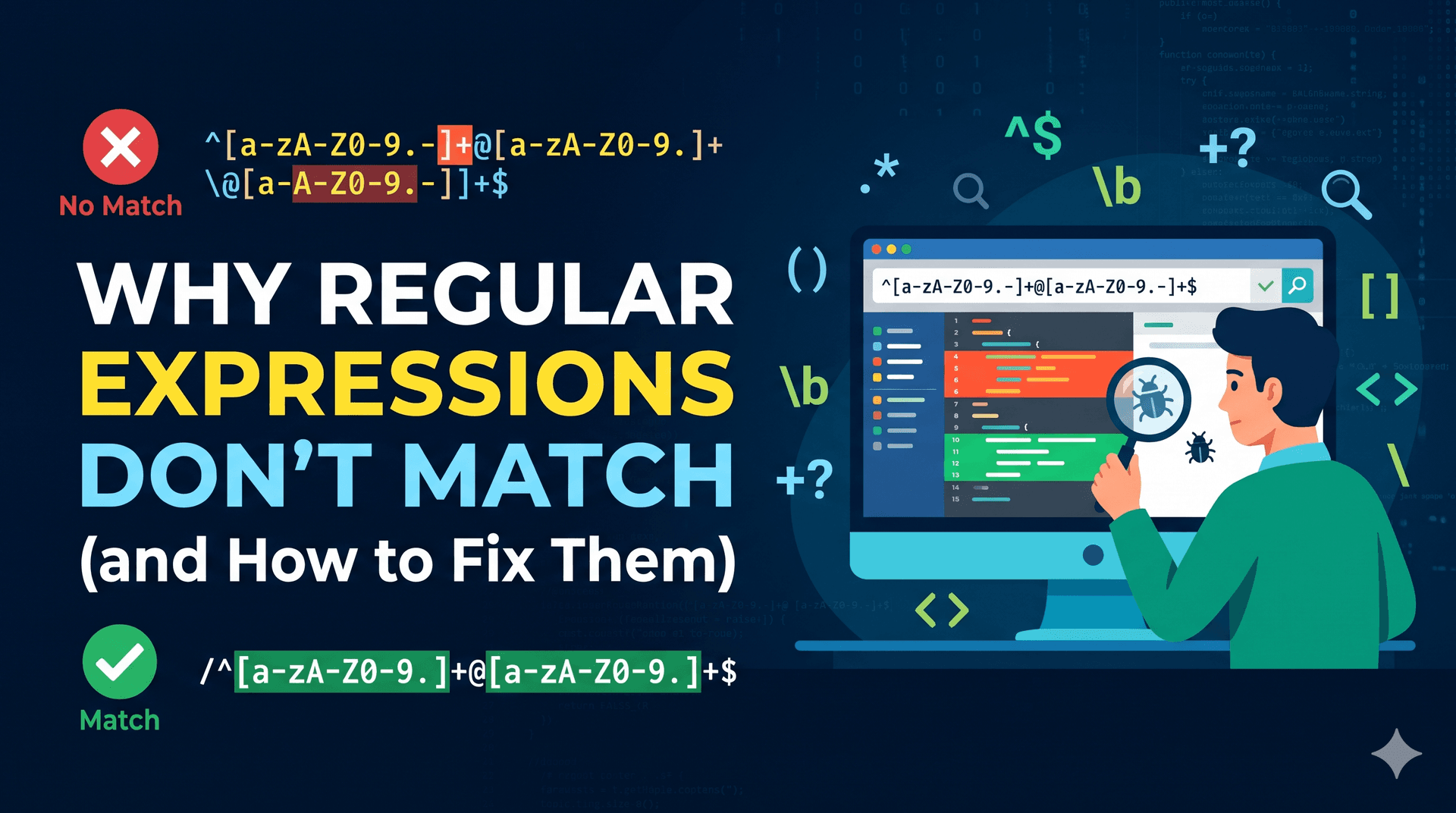
Why Regular Expressions Don't Match (and How to Fix Them)
Regular expressions (regex) are powerful tools for pattern matching and text manipulation, but for beginners, they can often feel like a cryptic language. When your regex pattern doesn't seem to match the text you expect, it's a common and often frustrating experience. The key to effective debugging is a systematic approach: breaking down the problem, testing incrementally, and understanding the common pitfalls. This guide will walk you through simple steps to identify and fix issues, helping you confidently debug your first regex patterns using practical examples like email addresses, phone numbers, and URLs.
Understanding Common Regex Pitfalls
Before diving into debugging, it's helpful to recognize why patterns frequently fail. Many issues stem from a misunderstanding of how regex engines interpret specific characters and constructs. Addressing these common areas can often resolve problems quickly:
- Literal Characters vs. Metacharacters: Many characters have special meanings in regex (e.g.,
.,*,+,?,[,],(,),{,},\,^,$). If you intend to match one of these characters literally, it must be escaped with a backslash (\). For example, to match a literal dot, use\.. - Quantifier Misuse: Quantifiers like
*(zero or more),+(one or more),?(zero or one), and{n,m}(between n and m times) dictate how many times the preceding element can repeat. Incorrect usage can lead to either over-matching or under-matching. - Anchors: The
^(start of string/line) and$(end of string/line) anchors are crucial for precise matching. Forgetting them might lead to partial matches where you expected full string matches, or vice-versa. - Greedy vs. Lazy Matching: By default, quantifiers are "greedy," meaning they match the longest possible string. Adding a
?after a quantifier (e.g.,*?,+?) makes it "lazy," matching the shortest possible string. This distinction is vital for patterns involving repetition. - Character Classes: A character class (
[...]) matches any single character within the brackets. A common mistake is forgetting to escape metacharacters inside the class if they're intended as literals, though many metacharacters lose their special meaning inside a character class (e.g.,.,*,+). However,-(for ranges) and^(for negation at the start) still have special meaning. - Case Sensitivity: Regex engines are often case-sensitive by default. If you need to match "Hello" and "hello," you'll need to use a case-insensitive flag (e.g.,
/pattern/iin JavaScript,re.IGNORECASEin Python) or specify both cases in your pattern (e.g.,[Hh]ello).
The Step-by-Step Debugging Workflow
When your regex isn't working as expected, follow these methodical steps:
1. Use a Regex Tester Tool
The single most important debugging tool is an interactive regex tester. Tools like our Regex Tester allow you to input your pattern and test strings simultaneously, providing instant feedback on matches, groups, and potential errors. This visual feedback is invaluable for seeing exactly what your pattern is doing.
2. Start Small and Build Up
Never write a complex regex all at once and expect it to work. Instead:
- Match the simplest part: Begin with a small, unique literal part of your target string.
- Incrementally add complexity: Add one regex component (a character class, a quantifier, an anchor) at a time.
- Test after each addition: Verify that the new component works as intended before moving on.
This approach helps isolate errors to the last added component.
3. Analyze Your Test String
Ensure your test string accurately represents the data you expect to match (and not match). Sometimes the issue isn't the regex, but the test data itself:
- Are there hidden characters (e.g., newlines, spaces) you're not accounting for?
- Does the test string contain all the variations your regex is supposed to handle?
- Are you testing negative cases (strings that shouldn't match) as well?
4. Check for Typos and Escaping Issues
Simple mistakes can lead to big headaches:
- Typos: Double-check every character in your regex. A misplaced character can completely change the pattern's behavior.
- Missing Escapes: As mentioned, special characters (
.,*,+, etc.) need to be escaped if you want to match them literally. This is a very common beginner mistake. - Unnecessary Escapes: Conversely, escaping a character that doesn't need it can sometimes alter its meaning or cause an error (e.g.,
\amight match'a'in some engines but represent a control character in others).
5. Understand Greedy vs. Lazy Quantifiers
This is crucial when dealing with repeated patterns. Consider the string "<b>Hello</b> <b>World</b>".
- Greedy:
<b>.*</b>will match"<b>Hello</b> <b>World</b>"(the entire string) because.*matches as much as possible. - Lazy:
<b>.*?</b>will match"<b>Hello</b>"and then"<b>World</b>"separately because.*?matches as little as possible.
If your regex is matching more or less than you intend in situations with repeating patterns, toggling between greedy and lazy quantifiers (by adding or removing ? after *, +, {n,m}) is a key debugging step.
6. Review Anchors and Boundaries
^and$(Start/End): If your pattern matches a substring but not the entire string, check if you've used^and$correctly to anchor the match to the beginning and end of the string (or line, with themflag).\b(Word Boundary): This ensures your pattern matches whole words. For example,\bcat\bwill match "cat" in "The cat sat." but not "catalogue." If your pattern is accidentally matching parts of words,\bmight be the solution.
7. Check Flags (Case-Insensitivity, Global, Multiline)
Most regex implementations allow flags that alter behavior:
i(Case-Insensitive): Matches "apple", "Apple", "APPLE".g(Global): Finds all matches in a string, not just the first one.m(Multiline): Allows^and$to match the start/end of lines within a multiline string, not just the absolute start/end.
Ensure you're using the correct flags for your specific matching needs. Forgetting the g flag is a common reason for only finding one match when multiple exist.
Practical Examples: Debugging Real-World Patterns
Let's apply these steps to common patterns that beginners often struggle with.
Debugging an Email Address Pattern
A simple email pattern might look like: ^[a-zA-Z0-9._%+-]+@[a-zA-Z0-9.-]+\.[a-zA-Z]{2,}$
Scenario 1: Missing TLD (Top-Level Domain)
Problematic Pattern: ^[a-zA-Z0-9._%+-]+@[a-zA-Z0-9.-]+$
Test String: user@example
Observation: This pattern matches user@example. But a valid email needs a top-level domain like .com or .org. The $ anchor is placed too early, essentially saying "end of string after the domain name."
Debugging Steps:
- Analyze Test String: The test string
user@exampleis missing the TLD. - Start Small/Build Up: We need to add the
.and then the TLD part. - Review Anchors: The
$anchor is the culprit. It's preventing the TLD part from being added.
Correction: Add \.[a-zA-Z]{2,} before the final $ to match a literal dot followed by at least two letters for the TLD.
^[a-zA-Z0-9._%+-]+@[a-zA-Z0-9.-]+\.[a-zA-Z]{2,}$Scenario 2: Incorrect Special Characters in Username
Problematic Pattern: ^\w+@[a-zA-Z0-9.-]+\.[a-zA-Z]{2,}$
Test String: user.name@example.com, user%name@example.com
Observation: This pattern will match user.name@example.com but fail to match user%name@example.com. The \w character class matches alphanumeric characters and underscore ([a-zA-Z0-9_]), but it misses other allowed special characters in email usernames like %, +, -, ..
Debugging Steps:
- Analyze Test String:
user%name@example.comshould be valid but isn't matching. - Character Classes: The
\wis too restrictive for email usernames. - Start Small/Build Up: Replace
\w+with a more comprehensive character class for the username part.
Correction: Expand the first character class to include ., %, +, - (and _ which \w covers), and also ensure . is escaped when used outside a character class in other contexts.
^[a-zA-Z0-9._%+-]+@[a-zA-Z0-9.-]+\.[a-zA-Z]{2,}$Debugging a Phone Number Pattern (U.S. Format)
A pattern for a U.S. phone number might look like: ^\(?([0-9]{3})\)?[-.\s]?([0-9]{3})[-.\s]?([0-9]{4})$
Scenario 1: Optional Separators Ignored
Problematic Pattern: ^([0-9]{3})([0-9]{3})([0-9]{4})$
Test String: 123-456-7890
Observation: This pattern only matches 1234567890. It fails for 123-456-7890 because it explicitly requires three consecutive digits without any separators.
Debugging Steps:
- Analyze Test String: The test string contains hyphens that the pattern doesn't account for.
- Quantifier Misuse: We need to allow for zero or one separator characters.
- Start Small/Build Up: Add an optional separator between the digit groups.
Correction: Add an optional character class for separators [-.\s]? between the digit groups. The ? quantifier makes the separator optional (zero or one occurrence).
^([0-9]{3})[-.\s]?([0-9]{3})[-.\s]?([0-9]{4})$Scenario 2: Parentheses for Area Code
Problematic Pattern: ^([0-9]{3})[-.\s]?([0-9]{3})[-.\s]?([0-9]{4})$
Test String: (123) 456-7890
Observation: The current pattern fails to match (123) 456-7890 because it doesn't account for optional parentheses around the area code. The parentheses ( and ) are metacharacters for grouping, so they need to be escaped to match them literally.
Debugging Steps:
- Analyze Test String: The test string uses literal parentheses.
- Literal Characters vs. Metacharacters: Parentheses must be escaped.
- Quantifier Misuse: The escaped parentheses should be optional.
Correction: Add optional, escaped parentheses \(? and \)? around the first digit group.
^\(?([0-9]{3})\)?[-.\s]?([0-9]{3})[-.\s]?([0-9]{4})$Debugging a URL Pattern
A basic URL pattern might be: ^(https?:\/\/)?([\da-z\.-]+)\.([a-z\.]{2,6})([\/\w\.-]*)*\/?$
Scenario 1: Protocol Mismatch
Problematic Pattern: ^https?:\/\/([\da-z\.-]+)\.([a-z\.]{2,6})([\/\w\.-]*)*\/?$
Test String: www.example.com
Observation: This pattern fails to match www.example.com because it explicitly requires the http:// or https:// protocol prefix. The (https?:\/\/)? part was initially designed to make the protocol optional.
Debugging Steps:
- Analyze Test String: The test string lacks a protocol.
- Quantifier Misuse: Ensure the entire protocol group is optional.
- Start Small/Build Up: Check if the
?is applied to the correct group.
Correction: The ? needs to apply to the entire protocol part, including http and the escaped slashes. The original pattern (https?:\/\/)? correctly makes the whole protocol optional.
^(https?:\/\/)?([\da-z\.-]+)\.([a-z\.]{2,6})([\/\w\.-]*)*\/?$Scenario 2: Subdomains and Paths
Problematic Pattern: ^(https?:\/\/)?([\da-z]+)\.([a-z]{2,6})\/?$
Test String: https://sub.domain.co.uk/path/to/page
Observation: This pattern will only match simple URLs like https://domain.com/. It fails for subdomains (sub.domain), multi-part TLDs (.co.uk), and paths (/path/to/page).
Debugging Steps:
- Analyze Test String: The test string contains subdomains, multi-part TLDs, and complex paths.
- Character Classes: The domain name section
([\da-z]+)needs to allow for hyphens (-) and additional dots for subdomains. The TLD section([a-z]{2,6})needs to allow for multiple parts like.co.uk. - Quantifiers/Repetition: The path part needs to allow for multiple segments and different characters.
Correction:
- For the domain part:
([\da-z\.-]+)allows for digits, letters, dots, and hyphens. - For the TLD:
([a-z\.]{2,6})allows for letters and dots (e.g.,.co.uk) with a suitable length. - For the path:
([\/\w\.-]*)*\/?allows for multiple path segments, containing word characters, hyphens, and dots, all optionally followed by a trailing slash. The*after the group allows for zero or more path segments.
^(https?:\/\/)?([\da-z\.-]+)\.([a-z\.]{2,6})([\/\w\.-]*)*\/?$Key Takeaways for Regex Debugging
- Use a Regex Tester: This is your primary tool for instant feedback.
- Build Incrementally: Start simple and add complexity one step at a time.
- Verify Test Data: Ensure your test strings accurately represent your target data.
- Master Escaping: Know when and how to escape special characters.
- Understand Quantifiers: Differentiate between greedy (default) and lazy (
?) matching. - Check Anchors and Flags:
^,$,\b,i,g,mcan drastically alter matching behavior. - Read Error Messages (if any): Some environments provide helpful feedback on malformed patterns.
Debugging regular expressions can be challenging, but by adopting a systematic approach and understanding the common pitfalls, you can quickly diagnose and fix issues, turning frustration into confident pattern matching.
Advertisement