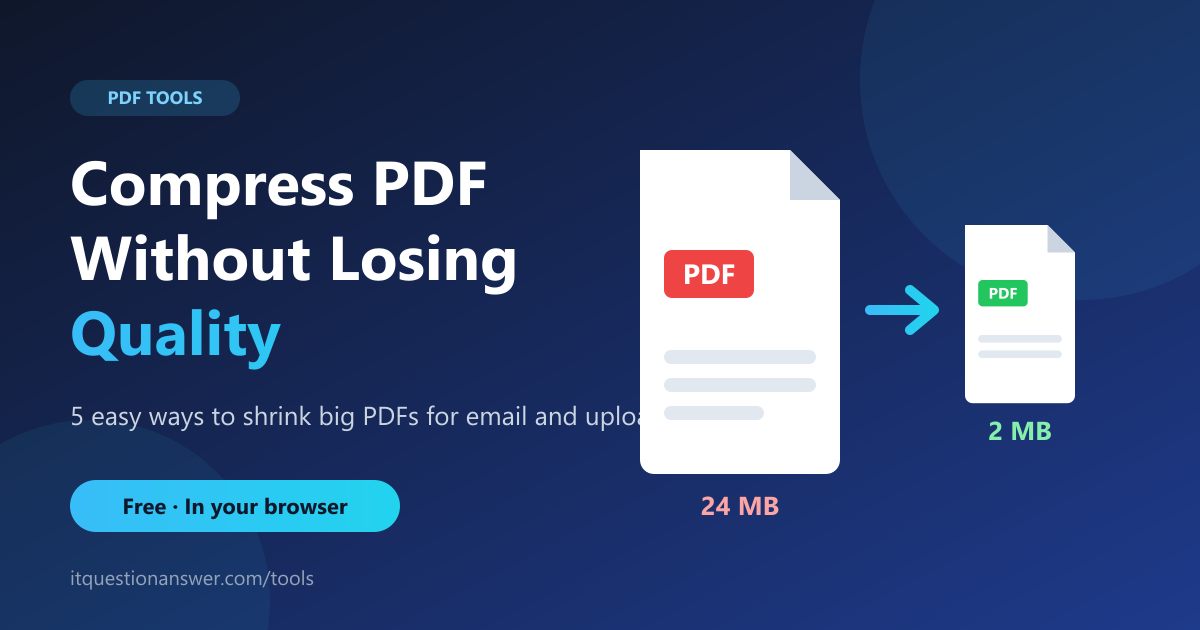
Compress PDF Without Losing Quality: 5 Easy Ways
You can compress a PDF without losing quality in a few minutes, but only if you know why the file is heavy in the first place. This guide explains the causes, the methods that work, and the shortcuts that quietly ruin your document.
Why Is Your PDF So Big?
A PDF is a container. Inside it sit pages, fonts, images, and a layer of hidden information such as author, software and edit history. Size usually comes from four places:
Images: A single high-resolution photo can outweigh fifty pages of text.
Scans: A scanned page is a picture of a page, so a scanned contract is mostly image data.
Embedded fonts: Each font used in the document may be stored inside it.
Document info and structure: Metadata and repeated objects add weight, though usually less.
In my experience, most people try to fix the wrong thing. They blame the page count when the real culprit is two oversized images on page three. Find the cause first, and the right fix becomes obvious.
Do You Know What "Quality" Means Here?
When people say they want to reduce PDF file size without losing quality, they usually mean one of three things:
Text must stay sharp and selectable.
Images must still look good on screen.
The layout must not shift.
Lossless compression keeps all three. It tightens the file's internal structure and strips unused data without touching your content. Lossy compression goes further by reducing image resolution. It can cut size dramatically, but it can also turn a clean signature into a blur.
The rule I follow is simple: try lossless first. Use lossy only if the file is still too big, and check the result before sending.
Five Ways to Reduce PDF File Size
1. Use a Browser-Based Compressor
The fastest route is a free tool that works right in your browser. Our Compress PDF tool tightens the file structure and removes document info, and the processing happens on your device. That matters when the file is a contract, a bank statement or an ID scan, because it never has to travel to a stranger's server.
2. Export Again From the Source
If you still have the original Word, Excel or PowerPoint file, export it again. Most office apps offer a "minimum size" or "optimise for web" option when saving as PDF. Re-exporting often shrinks a file more than any compressor, because the app can rebuild it cleanly.
3. Shrink the Images Before You Build the PDF
If your document is image-heavy, resize the photos first. A picture displayed at a few inches wide does not need to be 6000 pixels across. Our Image Compressor handles JPG, PNG and WebP and can cut image size noticeably without visible loss.
4. Remove What You Don't Need
Look at the file. Does it have blank pages, an old cover sheet or appendix pages the recipient won't read? Delete them. Fewer pages means a smaller file with no quality cost at all.
5. Split the File Instead of Squeezing It
Sometimes the better answer is to stop compressing. If a portal accepts several uploads, use the Split PDF tool to break one heavy document into smaller parts. Each part stays at full quality.
How Small Does It Need to Be?
Know your limit before you start, so you don't over-compress.
Gmail lets you attach files up to 25 MB, and larger files are shared through a Drive link.
Many job portals, government forms and university systems set much lower caps, so read the instructions on the upload page.
Aim for just under the limit, not as small as possible. Every extra bit of squeezing is a risk to quality with no benefit.
What to Do With Scanned Documents
Scans are the stubborn case. Because each page is a photograph, there is little structure to tighten, and a lossless pass may save only a small amount.
Fix the problem at the source. Rescan at a moderate resolution instead of the highest setting, choose black and white for plain text pages, and keep colour only for pages that truly need it. A clean 200 to 300 dpi scan is readable for most official purposes and far lighter than a heavy one. If a scan is already done and you can't redo it, splitting the file into smaller parts is the safest route.
A Quick Workflow You Can Reuse
Here's the three-step routine I'd suggest to any professional who handles documents regularly:
Check the size. Note the file size and the limit you're aiming for.
Compress losslessly. Run the file through a browser-based compressor and compare.
Inspect before you send. Zoom to 200 percent. Check signatures, stamps, small print and any photos.
If step 3 shows damage, go back to the original and try re-exporting, or split the file.
Mistakes That Ruin Good Documents
One mistake I keep noticing is compressing a file that was already compressed. Each round can degrade images further, and the savings shrink to almost nothing. Always work from the original when you have it.
The second is sending a compressed scan of a signed document without checking legibility. A tiny, blurred date can get a form rejected.
The third is uploading sensitive PDFs to unknown websites. If a tool asks you to upload a salary slip to a server, ask where it goes and who keeps it. A tool that runs inside your browser avoids the question entirely.
Frequently Asked Questions
How do I compress a PDF without losing quality?
Start with lossless compression, which tightens the file structure and removes unused data without changing your content. If you have the source file, re-exporting with a minimum-size option also works well.
Why is my PDF file so large?
Usually because of high-resolution images or scanned pages. Embedded fonts and metadata add smaller amounts.
How can I reduce a PDF to send by email?
Compress it, remove pages you don't need, or split it into two or three parts. Most email services also let you share a large file through a cloud link.
Is it safe to compress a PDF online?
It depends on the tool. Browser-based tools process the file on your own device, so the document is not sent to a server. Always check how a tool handles your files before using it for sensitive documents.
Your Next Step
Next time a file is too heavy, don't panic and don't guess. Find the cause, try the lossless fix first and check the result at full zoom. If you want a quick start, open the free Compress PDF tool and see how much you can save, with nothing uploaded and no signup.
6. Value added beyond the reference
A "lossless first, lossy last" rule, a three-step reusable workflow with a zoom check, and a section on the common mistakes (double compression, unreadable scans, sensitive uploads).
Advertisement