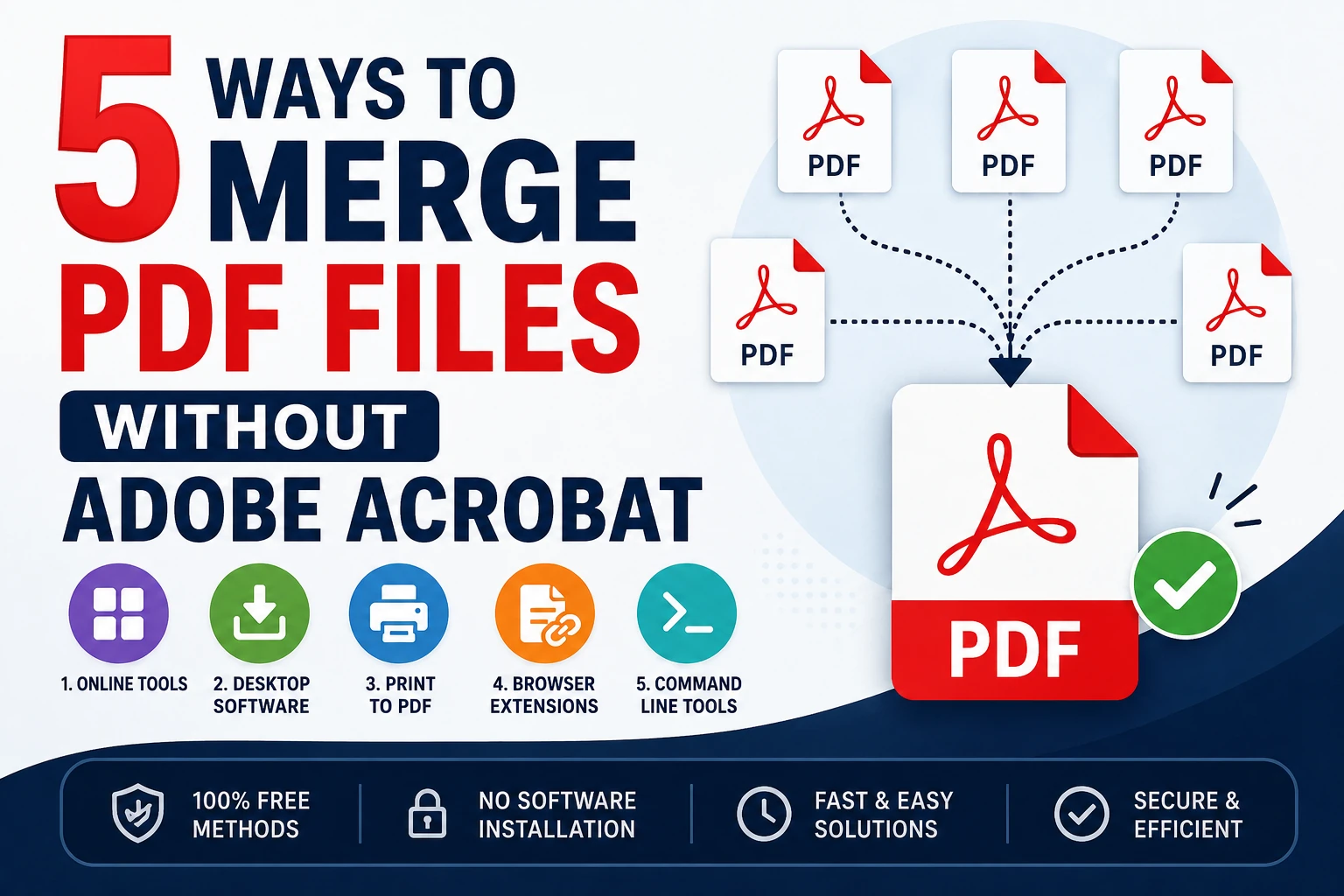
5 Ways to Merge PDF Files Without Adobe Acrobat
Need to combine multiple PDFs into one document? You don't need an Adobe Acrobat subscription to do it. Here are five free, reliable ways to merge PDF files — no matter your device or operating system.
1. Use a Free Online PDF Merger
Web-based tools like Smallpdf, iLovePDF, and PDF2Go let you merge PDFs directly in your browser.
How it works:
Upload your PDF files (drag and drop or browse)
Arrange them in the order you want
Click "Merge" and download the combined file
Best for: Quick, one-off merges when you don't want to install anything.
Watch out for: File size limits on free plans, and avoid uploading sensitive documents to unfamiliar sites.
2. Merge PDFs on Windows Using Print to PDF
Windows has a built-in trick using its native "Microsoft Print to PDF" feature.
How it works:
Open each PDF and select Print
Choose "Microsoft Print to PDF" as the printer
Use a free tool like PDFsam Basic to combine the individual printed PDFs into one
Best for: Windows users who want a no-cost, no-install workaround (with one small tool).
3. Merge PDFs on Mac Using Preview
Mac users have it easy — Preview, the built-in image and PDF viewer, can merge PDFs natively.
How it works:
Open the first PDF in Preview
Show the thumbnail sidebar (View > Thumbnails)
Drag additional PDF files or specific pages into the sidebar at the point you want them inserted
Save the combined file
Best for: Mac users — this requires zero extra software.
4. Use PDFsam Basic (Free Desktop Software)
PDFsam Basic is a free, open-source desktop application built specifically for merging, splitting, and rotating PDFs.
How it works:
Download and install PDFsam Basic (Windows, Mac, Linux)
Select the "Merge" module
Add your files, set the order, and click "Run"
Best for: People who merge PDFs regularly and want an offline, privacy-friendly tool.
5. Merge PDFs Using Google Drive and a Third-Party Add-On
If your files already live in Google Drive, you can merge them without downloading anything extra.
How it works:
Install a PDF merge add-on from Google Workspace Marketplace (e.g., "PDF Mergy" or similar)
Select your PDF files in Drive
Run the add-on to combine them into a single file saved back to Drive
Best for: Teams already working in Google Drive who want merges to stay in the cloud.
Which Method Should You Choose?
Method | Cost | Install Required | Best For |
|---|---|---|---|
Online PDF Merger | Free | No | Quick, occasional use |
Windows Print to PDF | Free | Minimal | Windows users |
Mac Preview | Free | No | Mac users |
PDFsam Basic | Free | Yes | Frequent/offline use |
Google Drive Add-on | Free/Freemium | No | Cloud-based teams |
Final Thoughts
Merging PDFs doesn't require an Adobe subscription. Whether you prefer a quick online tool, a built-in OS feature, or a dedicated desktop app, there's a free option that fits your workflow and keeps your documents organized without added cost.
Advertisement