How to Compress a PDF Without Losing Quality
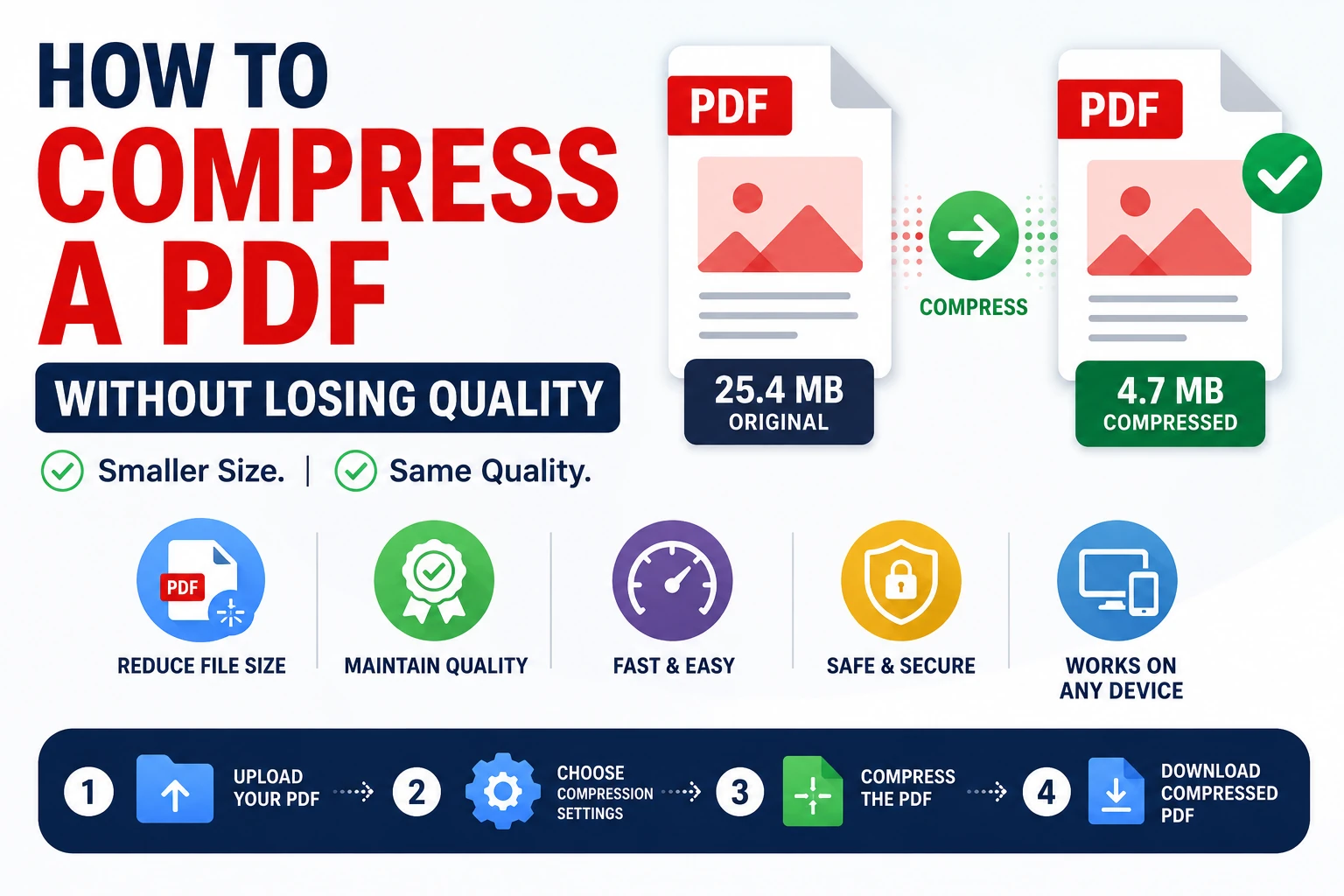
Large PDF files are a hassle — they're slow to email, tough to upload, and can hit file size limits on forms and portals. The good news: you can shrink a PDF significantly while keeping text sharp and images clear. Here's how.
Why PDFs Get Bloated
Before compressing, it helps to know what's causing the bulk:
High-resolution images embedded at print quality
Uncompressed fonts and embedded font sets
Scanned pages saved as large image files instead of text
Redundant data from repeated edits or multiple save cycles
Compression works by targeting these factors — mainly image resolution — without touching the actual text layer.
1. Use an Online PDF Compressor
Tools like Smallpdf, iLovePDF, and Adobe's free online compressor let you upload a file and choose a compression level.
How it works:
Upload your PDF
Select a compression level (usually "Low," "Medium," or "High")
Choose "Medium" or "Recommended" to balance size and quality
Download the compressed file
Tip: Avoid the most aggressive setting unless file size is your only priority — it can visibly degrade images.
2. Compress PDFs with Preview (Mac)
Mac users can reduce file size without installing anything extra.
How it works:
Open the PDF in Preview
Go to File > Export
Under Quartz Filter, select "Reduce File Size"
Save as a new file
Note: This method compresses images fairly aggressively — good for casual use, less ideal for high-quality print documents.
3. Use Adobe Acrobat's Reduce File Size Tool (If You Have It)
If you already have Acrobat, its built-in optimizer offers more control than most free tools.
How it works:
Open the PDF and go to File > Save As Other > Reduced Size PDF
Or use File > Save As Other > Optimized PDF for granular control over image downsampling, font subsetting, and removing unused objects
Best for: Users who want precise control over what gets compressed.
4. Downsample Images Before Creating the PDF
If you're generating the PDF from a source file (Word, InDesign, etc.), the cleanest fix is reducing image resolution before export.
How it works:
Resize embedded images to 150–200 DPI for screen/email use (300 DPI is only needed for print)
Export or "Save as PDF" from the original application
This avoids double-compression artifacts that come from shrinking an already-finished PDF
Best for: Documents you're creating from scratch, where quality control matters most.
5. Use Free Desktop Software (PDFsam, Ghostscript)
For batch compression or offline work, dedicated tools give you more consistency.
How it works:
Ghostscript (command line): run a command like
gs -sDEVICE=pdfwrite -dPDFSETTINGS=/ebook -o output.pdf input.pdf— the/ebooksetting balances quality and size wellPDFsam Enhanced or similar GUI tools offer compression modules with adjustable image quality sliders
Best for: Developers, IT teams, or anyone compressing PDFs in bulk.
Tips to Preserve Quality While Compressing
Compress images, not text — text stays sharp regardless of compression since it's vector-based, not pixel-based
Avoid recompressing an already-compressed PDF repeatedly — quality loss compounds
Use "medium" or "web" quality settings rather than the maximum compression option
Keep a master copy of the original high-quality PDF before compressing, in case you need it later
Which Method Should You Choose?
Method | Cost | Control Level | Best For |
|---|---|---|---|
Online Compressor | Free | Low | Quick one-off compression |
Mac Preview | Free | Low | Mac users, casual use |
Adobe Acrobat Optimizer | Paid | High | Precise, professional control |
Downsampling Before Export | Free | High | Documents created from scratch |
Ghostscript / PDFsam | Free | Medium-High | Batch processing, technical users |
Final Thoughts
Compressing a PDF doesn't have to mean sacrificing quality. By targeting images rather than text, choosing moderate compression settings, and picking the right tool for your workflow, you can shrink file sizes significantly while keeping your document sharp and professional.
Advertisement